DataTrak MTD Membership Sales
Report Summary
This report allows you to track DataTrak & Online Signup membership sales in real time so that you can monitor membership sales for the month across one or multiple clubs. You can also review membership sales for completed months. The report provides an overview of membership sales by date range, day of the week, pay mode, membership type, agreement type, salesperson, and campaign. Member-level detail reports are available to provide further information.
This report includes both member accounts that are synced with the ABC Billing System and non-synced member accounts.
The report can incorporate changes, even after the month is completed. This occurs because sign date determines when the membership sale is accounted for. For example, if a member joins in September but the agreement is rewritten in October, the agreement will be counted toward October membership sales and removed from September membership sales.
The summary report represents the number of unique agreements, while the detail reports represents all unique combinations of agreement number and category (pay mode, salesperson, campaign, etc.). Therefore, the detail report counts do not match the summary report counts.
For example, if Member A from Club 1 pays by credit card, but a secondary member on that account pays by EFT, then the pay mode detail report includes a record for the member paying by credit card and another record for the secondary member paying by EFT. Even though there is one account, as represented on the summary, there are two paymode records, as represented in the detail report.
This report is only available for clubs using DataTrak to enter agreements. Additionally, sales are assigned to a month based on sign date. Data in this report will not match to any other membership reports which are based on posted date or queue date.
The DataTrak MTD Membership Sales report includes membership sales entered through DataTrak and Online Signup. To view ABC Managed membership agreements entered across all data entry methods (ABC contract entry, DataTrak, Online Signup, or Online Business Center), use the New Accounts report, which is also located under the Account Detail tab.
Please note the following key differences between the DataTrak MTD Membership Sales report and the New Accounts Report:
- If a member appears on the DataTrak MTD Membership Sales report but not on the New Accounts report, then that individual is either a Club Managed member or the agreement has not yet synced. Members won’t sync until their Pending POS is paid, and the agreement is approved and posted.
- If a member appears on the New Accounts report but not on the DataTrak MTD Membership Sales report, then the member’s agreement was entered through ABC and not DataTrak EAE or Online Signup. These are considered new agreements, but not sales for the club.
Generating the Report
The parameters page allows you to customize data provided by selecting:
- Report Type - Select Summary or Detail.
- Start Date - Select the beginning date for the desired time frame.
- End Date - Select the ending date for the desired time frame. To report on the current date, select today's date in the Start Date and End Date fields.
- Clubs - Select one or more clubs to be included in the report by moving one or more clubs from the Available Clubs box to the Selected Clubs box.
- To add all available clubs to the Selected Clubs box, select the All Clubs check box.
- To select specific clubs, click the name of the club you want to move to the Selected Clubs box then click the arrow pointing toward the Selected Clubs box.
- Membership Type - Select All Membership Types or specify which membership types to include.
- To select multiple membership types, press and hold the Ctrl key while you make your selections.
- To select multiple membership types in consecutive order, press and hold the Shift key while you make your selections.
- To remove a selection, press and hold the Ctrl key and then click the membership type you want to deselect.
The Membership Type column shows the current membership type status. Changing the date will not reflect the membership type for the selected date, only the current status.
- Report Format - Choose a report format.
Once you have made your selections, run or queue the report.
The parameters page is displayed below.
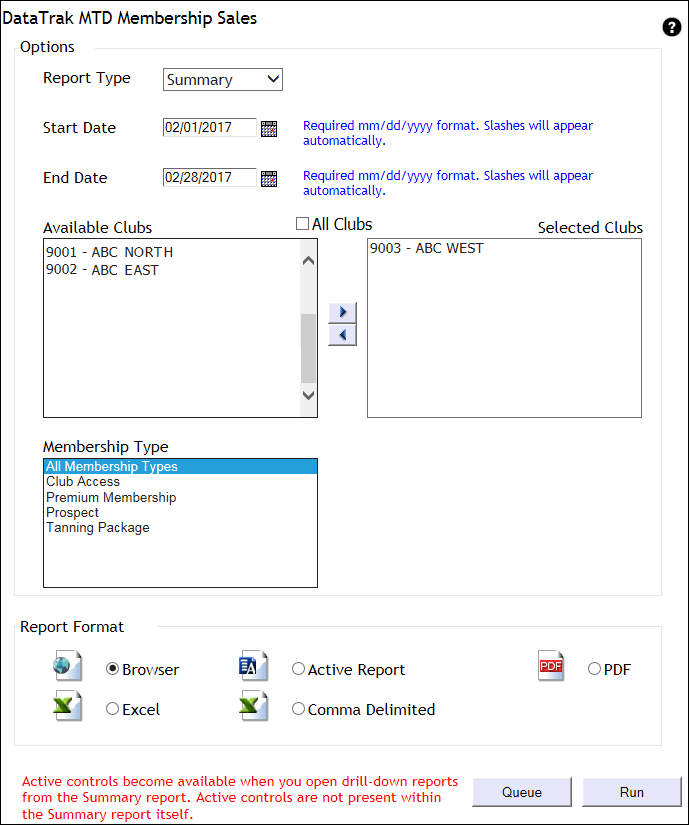
Clubs that do not have data for the time parameter selected will be suppressed from the report. If no data is found for all clubs selected, the system will notify you that no records were found.
Summary Report
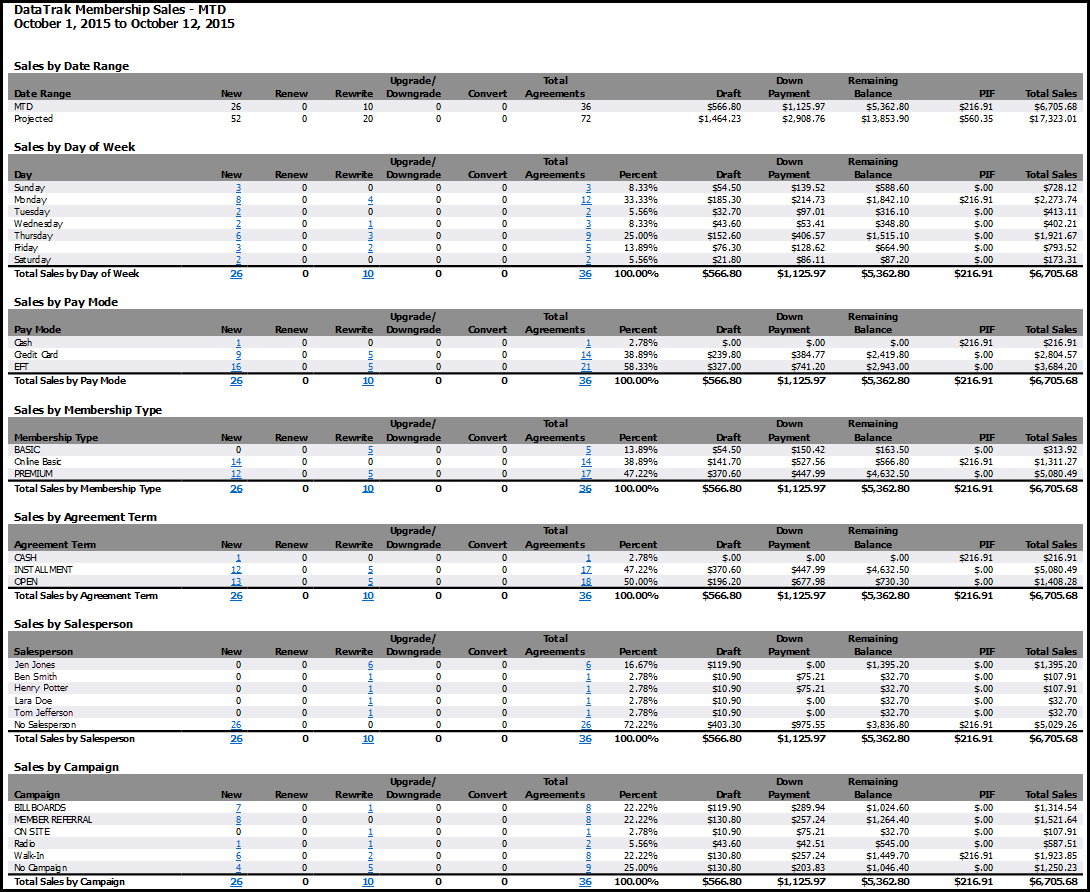
When multiple clubs are included, the aggregate summary will load first. Membership Sales are analyzed in the following summary sections:
- Sales by Date Range
- Sales by Day of Week
- Sales by Pay Mode
- Sales by Membership Type
- Sales by Agreement Term
- Sales by Salesperson
- Sales by Campaign
- Sales by Payment Plan
Here is a sample of the Summary report:
| Column | Description |
| New | New agreements that have never been active in the system |
| Renew | Inactive accounts that were active in the past and will renew to the same terms as the most recent agreement |
| Rewrite | Inactive accounts that were active in the past but were rewritten to new terms |
| Upgrade/Downgrade | Active accounts that were upgraded or downgraded to add or remove profit centers or services |
| Convert | A prospect converting to a new agreement |
| Total Agreements | Total agreements in new, renew, rewrite, upgrade/downgrade, or convert status |
| Percent | All agreements signed during the period divided by total agreements |
| Draft | Monthly invoice amount, excluding enhancement fees |
| Down Payment | The amount paid at the signing of the agreement |
| Remaining Balance | Remaining unpaid invoices associated with the agreement, including all billing profit centers and enhancement fees |
| PIF | Paid-in-full amount collected when the agreement was signed |
| Total Sales | Down payment + Remaining Balance + PIF = Total Sales |
Drill-Down Reports
Agreement counts are formatted as hyperlinks. Select an agreement count to view a detail report.
For example, in the Sales by Day of Week section select the total for New agreements sold on Friday.

In response, a detail report will load displaying all the new agreements entered for Friday.

Columns including Club Name, Club Number, Agreement Number, and Member Name are included in the drill-down report. This information was cropped out of the image to showcase key data.
| Column | Description |
| Agreement Term | Open (month to month), Installment (term), or Cash (PIF) |
| Pay Mode | DataTrak Pay Mode (EFT, Cash, Credit Card, Problem) |
| Sign Date | The date the agreement was signed |
| Queue Date | The date the agreement was queued in DataTrak and began awaiting approval |
| Begin Date | The date the member can begin using the club |
| First Due Date | The first invoice date due in system |
| Profit Center | The profit center associated with the monthly invoice amount |
| Sale Type | The type of agreement that was signed (new, renew, rewrite, upgrade/downgrade, convert) |
| Term in Months |
The term of the agreement (If 1 is displayed, the account is an open or paid-in-full account. Otherwise, the term is provided in months.) |
| Remaining Balance | The remaining balance of all unpaid invoices in the system |
| Renewal Type | The renewal status of the current agreement |
| Club Approval Status | Whether the agreement has been approved or is in the queue awaiting approval |
Automated Report
The DataTrak MTD Membership Sales report is available by automated delivery. You can receive the report on a daily cycle or limit delivery to an end of month cycle. Click here for more information about automated reports.