Renewal Audit
Report Overview
The Renewal Audit report can be used to view the renewal status of all active members in real time, as well as to retrieve member contact information and ensure billing continuity.
Open end accounts and inactive members are excluded from this report.
Check Renewal Status
The report groups member accounts into sections based on the following renewal statuses:
- Auto renew to open
- Not set to renew
- Renewal cancelled
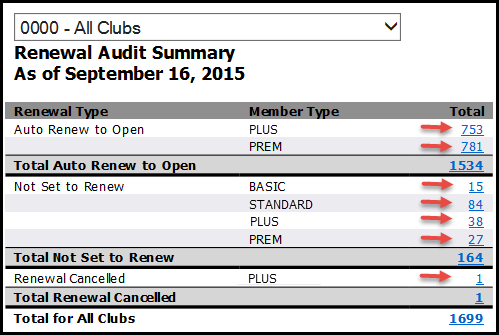
If you generate the Summary, you can view an additional layer of data. The Summary displays totals for each renewal status broken out by member type. You can view account-level detail either by status or for a particular member type within a status. For example, you can select Premium member types that are not set to renew.
Ensure Billing Continuity
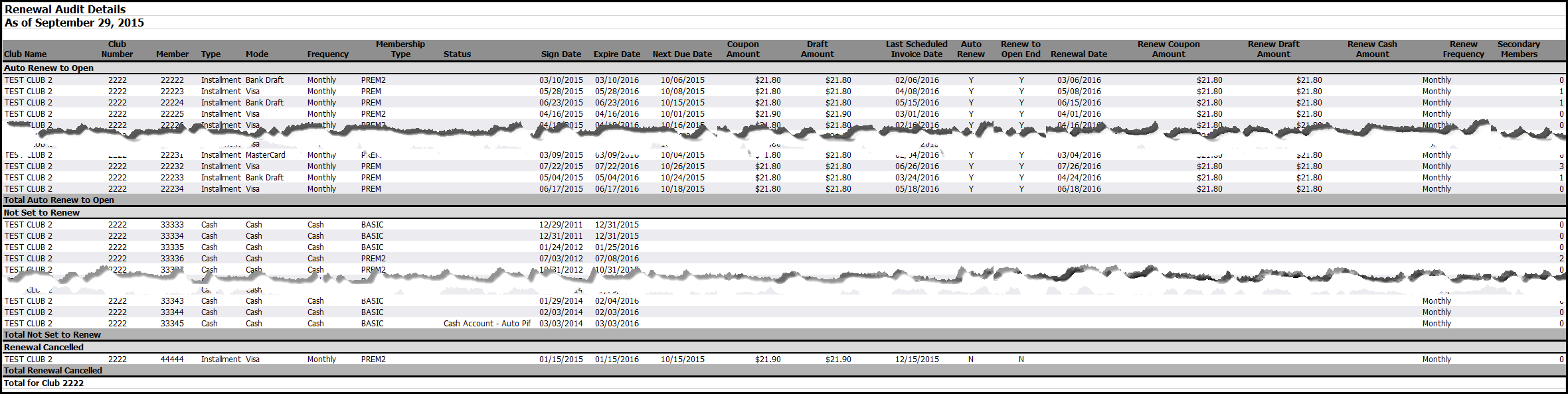
You can plan for billing continuity by ensuring that renewals are properly set up. Use detail reports to check renewal amount and frequency as well as key dates displayed in the report, you can adjust any errors noted before an issue occurs.
Check Renewal Amount and Frequency
Help keep revenue steady through the renewal process by confirming that member accounts are set up to renew at the proper draft amount and frequency.
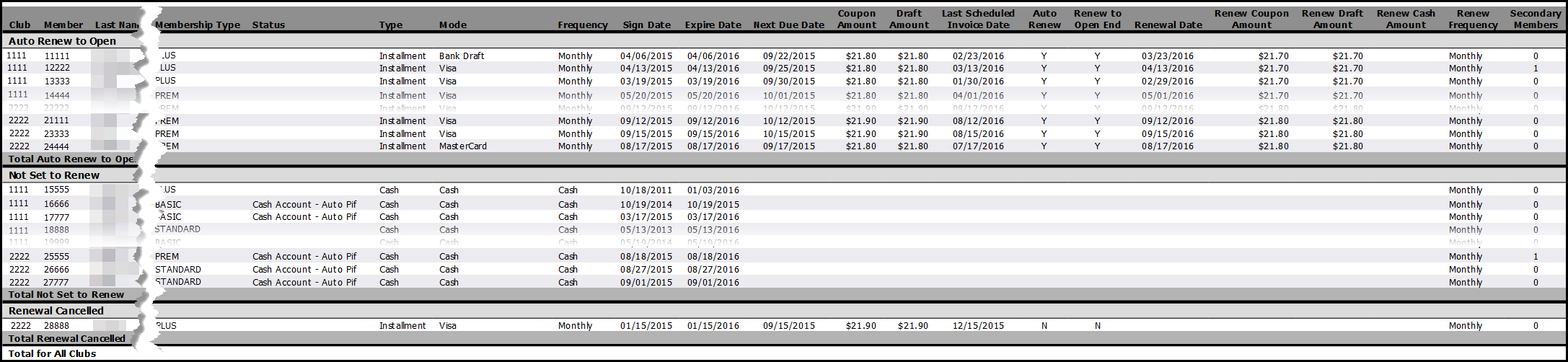
Compare the current billing frequency and draft amount to the renew frequency and renew draft amount, highlight in the sample report below..

Check Key Dates
To avoid gaps in payment or double billing a member account, compare the last scheduled invoice date and the renewal date and adjust as needed.
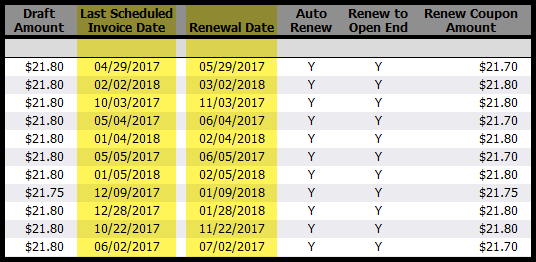
The last scheduled invoice date is for the primary invoice only and does not include secondary invoices.
Generating the Report
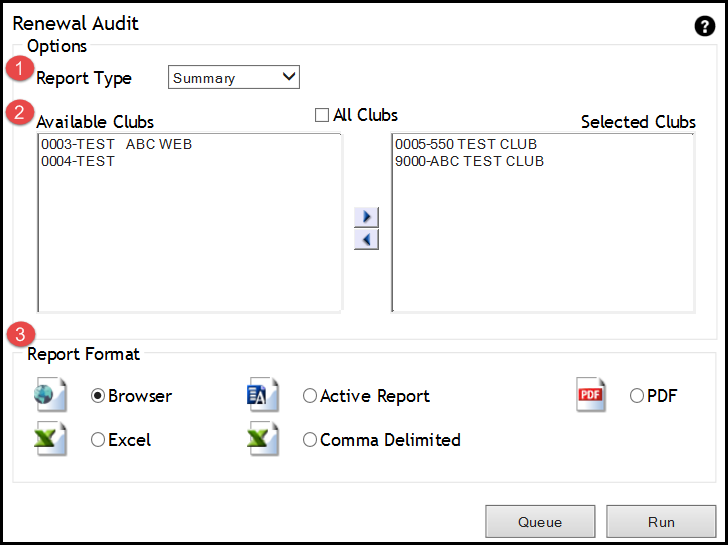
The parameters page of the report allows you customize the data provided by selecting:
- Report Type - To generate the Summary, select the Summary report type on the parameters page. If you want to bypass the Summary and view the full detail report, select the Detail report type.
- Clubs - Select one or more clubs to be included in the report by moving one or more clubs from the Available Clubs box to the Selected Clubs box.
- To add all available clubs to the Selected Clubs box, select the All Clubs check box.
- To select specific clubs, click the name of the club you want to move to the Selected Clubs box then click the arrow pointing toward the Selected Clubs box.
- Report Format - Choose a report format.
Once you have made your selections, run or queue the report.
The parameters page is displayed below.
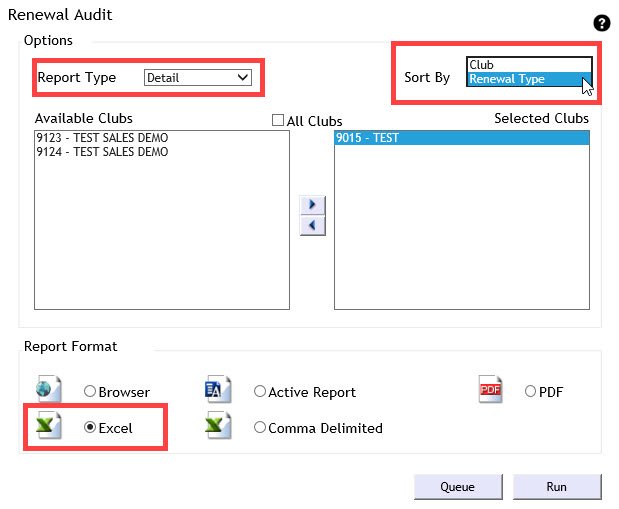
Note that when you select the Excel report format and the Detail report type, you will receive the option to sort by renewal type or club. For more information, click here.
Sample Report
You can generate the report as a Summary or Detail, based on your report type selection on the parameters page.
Summary
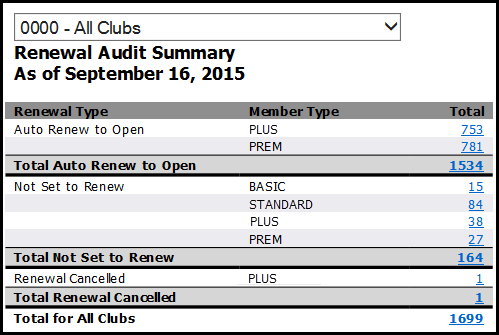
When you select the Summary report type, you can use the Summary to gain an overview of renewal data for one or more clubs. This report type also allows a more customized drill-down report selection.
Summary Drill-Down Reports
From the Summary, you can see the total number of members in each renewal status and view totals for each member type by status. The Summary has incorporated additional drill-down reports. Use the drill-down reports to view specific data, such as premium members who are not set to renew, or all report details.
View All Data
To view all club data across renewal types and member types, select the Total for All Clubs. In a single-club report, select the Total for Club.
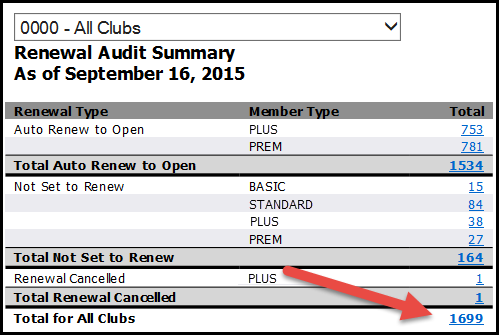
This action generates a full detail report, like the sample below.
View Data By Renewal Type
To view a detail report for a specific renewal type, select the total provided for the renewal type.
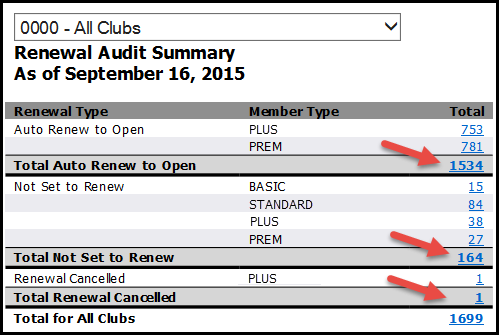
For example, select the Total Not Set to Renew to view all member accounts which are not currently set to be renewed. A sample of this drill-down report is displayed below.

View Data By Member Type
Select a Member Type total to view all relevant member accounts. For example, select the total for the Renewal Cancelled Plus member type to view Plus members who fall under the Renewal Cancelled status.
Below you can see a sample detail report for Plus members who fall under the Renewal Cancelled status.
.
Detail
If you select the Detail report type from the parameters page, you will bypass the report summary and generate a full list of members, across all renewal types and member types, organized by renewal status.
Here is a sample of the Detail report:
Next Due Date represents the next invoice date, whether primary or secondary.
When you choose to run the Detail report in Excel format, a sort option is provided. You can sort by renewal type or club.
Sort By Renewal Type
When you sort by renewal type, the Excel workbook sorts data for each renewal type into its own tab.

Select a tab to view data for the related renewal type. For example, select the Auto Renew to Open tab to view a detail report for Auto Renew to Open accounts across all selected clubs.

Member name, home phone, cell phone, and e-mail address columns are included in the report. These columns were cropped out of the sample image to focus on key data provided in the report.
Sort By Club
When you sort by club, the Excel workbook sorts data for each club into its own tab.

Select a tab to view an individual club's report, which lists member accounts organized by renewal type.
Member name, home phone, cell phone, and e-mail address columns are included in the report. These columns were cropped out of the sample image to focus on key data provided in the report.
Navigating The Aggregate Summary Report
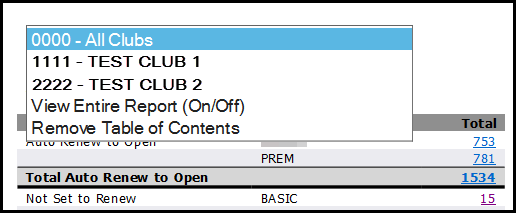
When multiple clubs are included in the Summary, you can navigate between the aggregate report and individual club reports as indicated below.
PDF Format
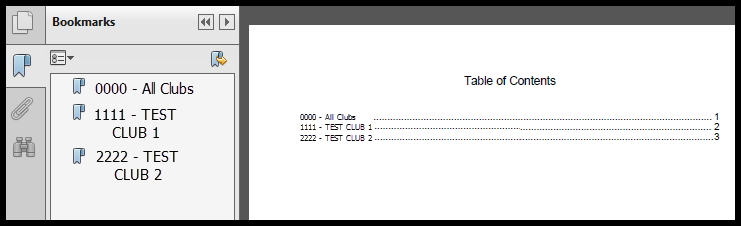
When you generate the report in PDF format, use Bookmarks or the Table of Contents to move from the aggregate report to an individual club report.
Excel Format
In Excel format, the aggregate report and each club included have their own tab. Select a tab to view related data.

Browser Format
In Browser format, a drop-down menu allows you to navigate from the aggregate report to individual club reports. To open the drop-down menu, click the arrow ( ) to the right of the club name in the report header then select a club.