Activating and Deactivating Catalog Items
Items must be activated from the catalog level to be deployed to a club where they can be sold and managed.
 Show me how to activate items from the catalog level.
- Open the Setup Menu.
- From the Inventory submenu, select Catalog Items.
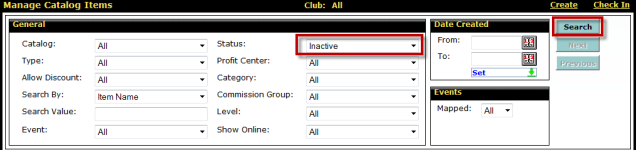
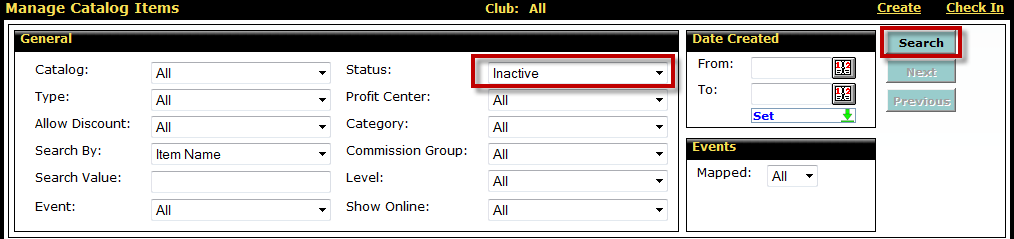
- Change the Status option to Inactive.
- If necessary, add other search criteria to locate the inactive item.
- Click Search.
- Select the item you want to activate.
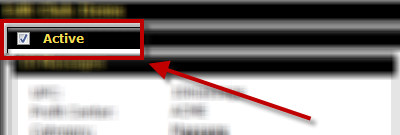
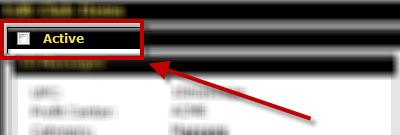
- Check the Active box at the top left of the Edit Catalog Item page.
- You can deploy this item to the club individually by moving the clubs you want to the Selected menu in the Clubs section.
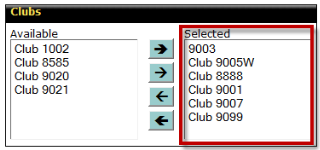
If you want to wait and deploy items as a group, you can skip this step.See Deploying Items. - Click Save.
- Repeat these steps for all items you want to activate.
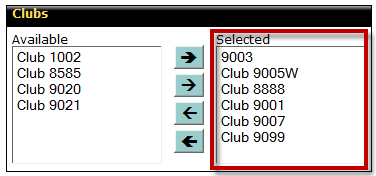
If you deactivate an item from the catalog level, the item will be unavailable to the clubs to which it was deployed.
Show me how to deactivate items from the catalog level.
Open the Setup Menu.From the Inventory submenu, select Catalog Items.Change the Status option to Inactive.If necessary, add other search criteria to locate the active item.Click Search.Select the item you want to deactivate.Uncheck the Active box at the top left of the Edit Catalog Item page. The item has been deactivated. This item will no longer be available at the clubs to which it was previously deployed until it is reactivated.
- Open the Setup Menu.
- From the Inventory submenu, select Catalog Items.
- Change the Status option to Inactive.
- If necessary, add other search criteria to locate the inactive item.
- Click Search.
- Select the item you want to deactivate.
- Uncheck the Active box at the top left of the Edit Catalog Item page.
- Click Save.
Note: If a warning dialog box appears, this means that the item is attached to one or more payment plans or agreements. Clicking Yes will detach the item from payment plans and new agreements.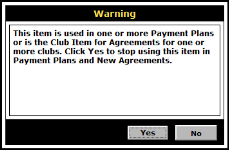
Activating and Deactivating Club Items
An item that has been deployed to the club will be active by default, but it can be deactivated at the club level.
Show me how to activate items at the club level.
- Open the Setup Menu.
- From the Inventory submenu, select Club Items.
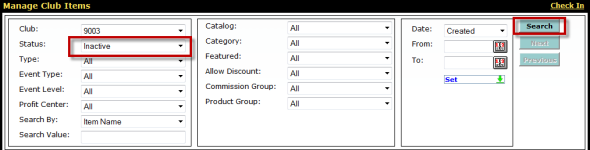
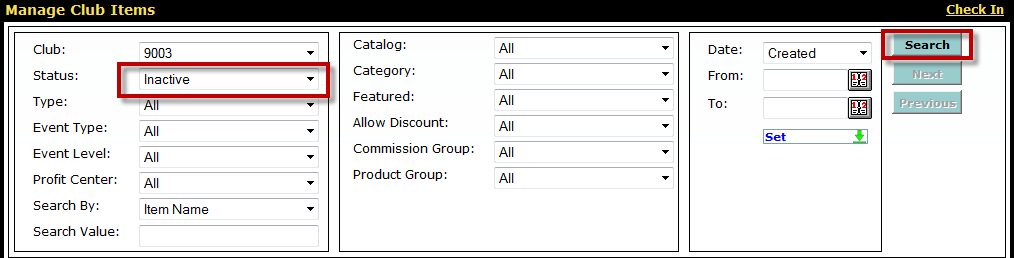
- Change the Status option to Inactive.
- If necessary, add other search criteria to locate the inactive item.
- Click Search.
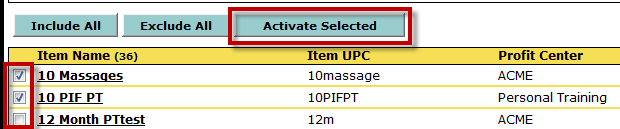
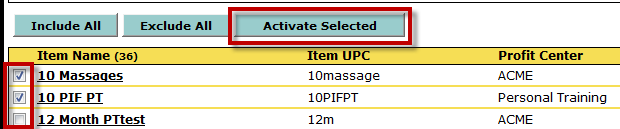
- Check the box next to the name of the item(s) you want to activate or click Include All to select all listed items.
- Click Activate Selected.
The item(s) will be removed from the inactive list because they are now active.
You can also select a club item individually and check the Active box at the top left of the Edit Club Items page.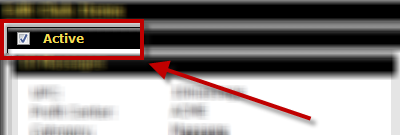
Deactivating items at the club level does not affect the active status of the item at the catalog level or at other clubs.
Show me how to deactivate items at the club level.
- Open the Setup Menu.
- From the Inventory submenu, select Club Items.
- Change the Status option to Active.
- If necessary, add other search criteria to locate the active item.
- Click Search.
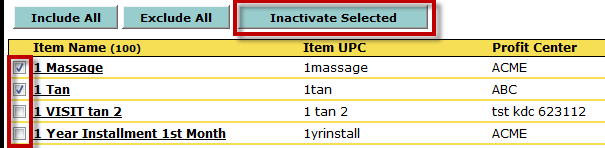
- Check the box next to the name of the item(s) you want to deactivate or click Include All to select all listed items.
- Click Inactivate Selected.
Note: If a warning dialog box appears, this means that the item is attached to one or more payment plans or agreements. Clicking Yes will detach the item from payment plans and new agreements.
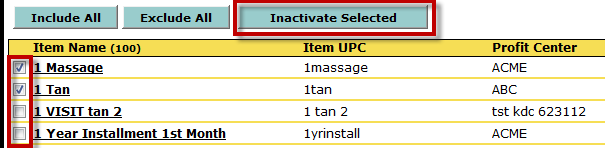
The item(s) will be removed from the active list because they are now inactive.
You can also select a club item individually and uncheck the Active box at the top left of the Edit Club Items page.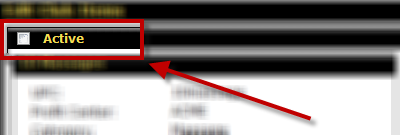
 © 2026 ABC Fitness Solutions, LLC.